Help & Support
Everything you need to get comfortable with Orynr: signing in, finding your way around, using each app, and fixing anything that misbehaves.
Signing in Coming soon
On a home computer Orynr signs you in with a PIN, the way Windows does. Type it and press Enter. A password is asked for as well only where a work network needs one, and you can add one yourself in Settings if you want a second way back in.
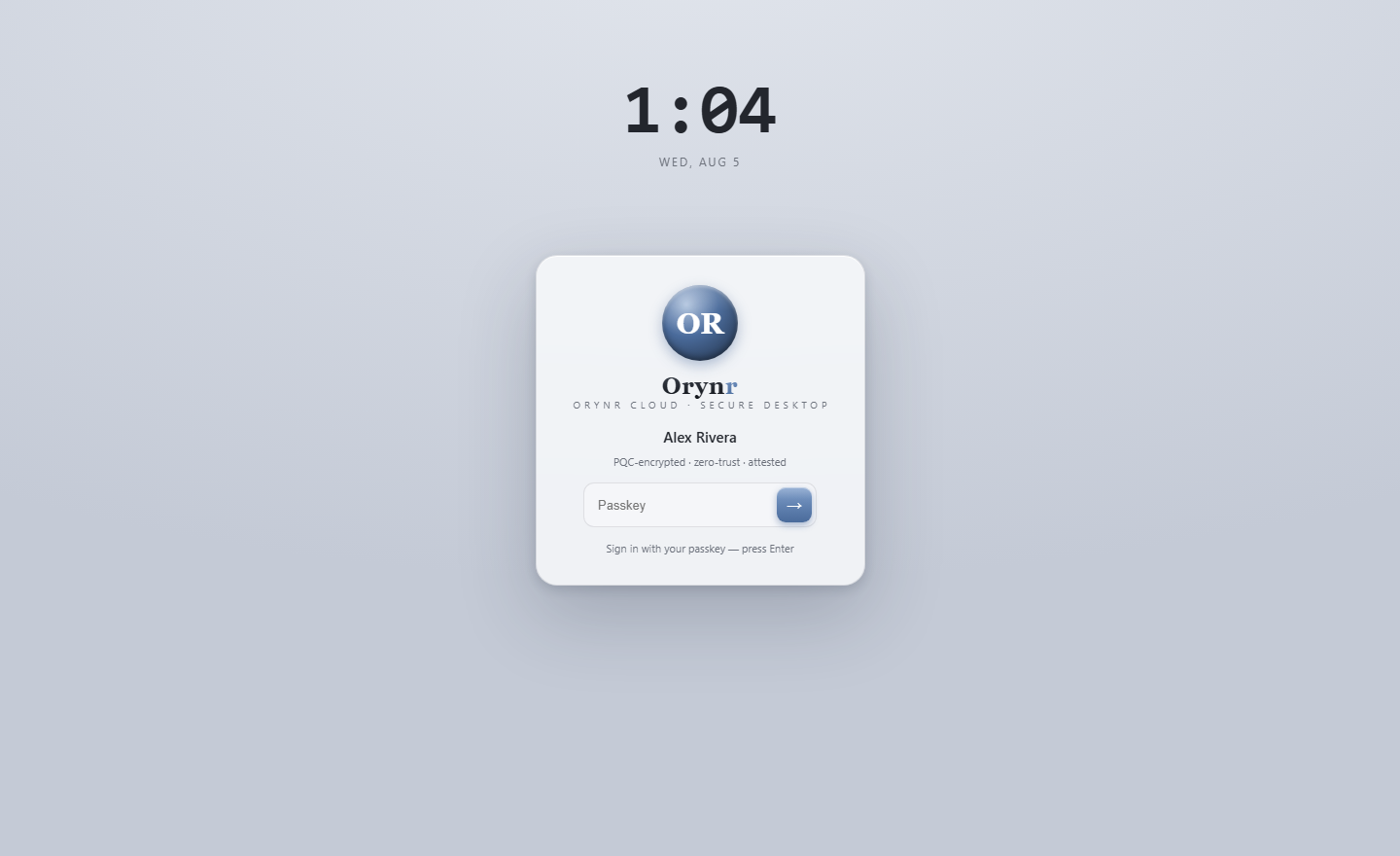
Your PIN
- Six to twelve digits. Simple ones such as 111111 are refused.
- Five wrong tries and you wait a minute, in which not even the right PIN is taken. Then you get three more tries. After that it is your recovery key, or your password if you have one. The count survives a restart, and each wrong PIN takes two seconds to answer.
- Only this screen can send a PIN. A program, a terminal, a network login and Ora are all refused before anything is counted, so none of them can lock you out.
Your recovery key
Setup shows it once, and will not finish until you tick I have written it down. Each person added later sees their own when they choose their first PIN. It is never shown a second time, so keep it somewhere away from the computer. Five wrong keys stop further tries on that account until the computer is restarted.
The lock screen
Pressing any key on the lock screen simply asks for the sign-in screen. There is no PIN, password or recovery key handling in the lock screen program at all, so nothing typed to unlock ever passes through the session it is protecting.
Fingerprint
Where a reader is fitted and a finger is enrolled, the sign-in screen and the permission question will take it, asked of the reader by the system itself rather than by a window. We have not yet tried this on a real reader, which is why this section says Coming soon.
The desktop
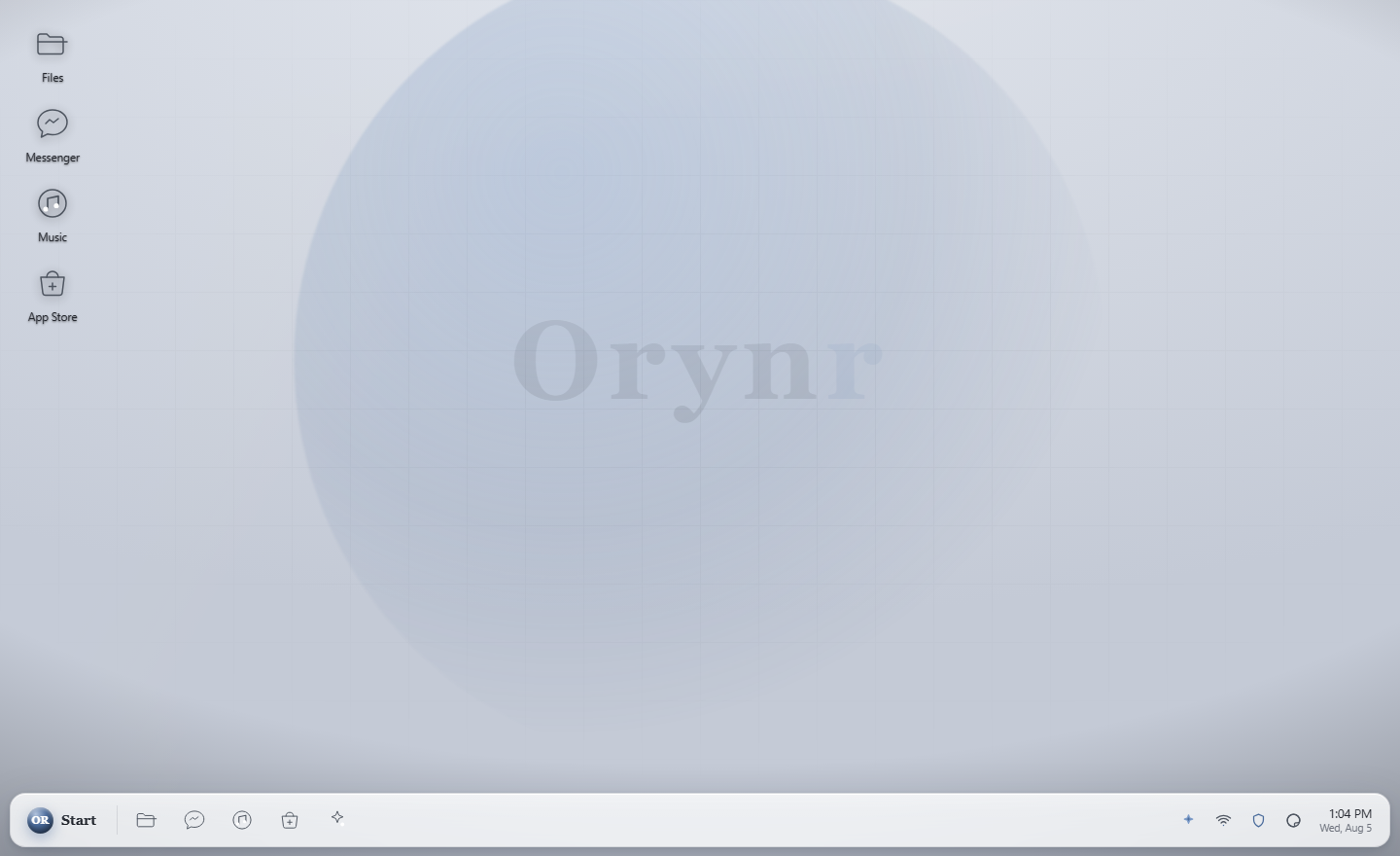
After sign-in you land on the desktop. It's calm on purpose, the security lives in the architecture, not in your face.
Desktop icons
Your everyday apps: Files, Browser, App Store and Trash. Double-click to open.
Taskbar
The Start menu, quick-launch icons, the system tray (network, activity, firewall, threats, theme) and the clock.
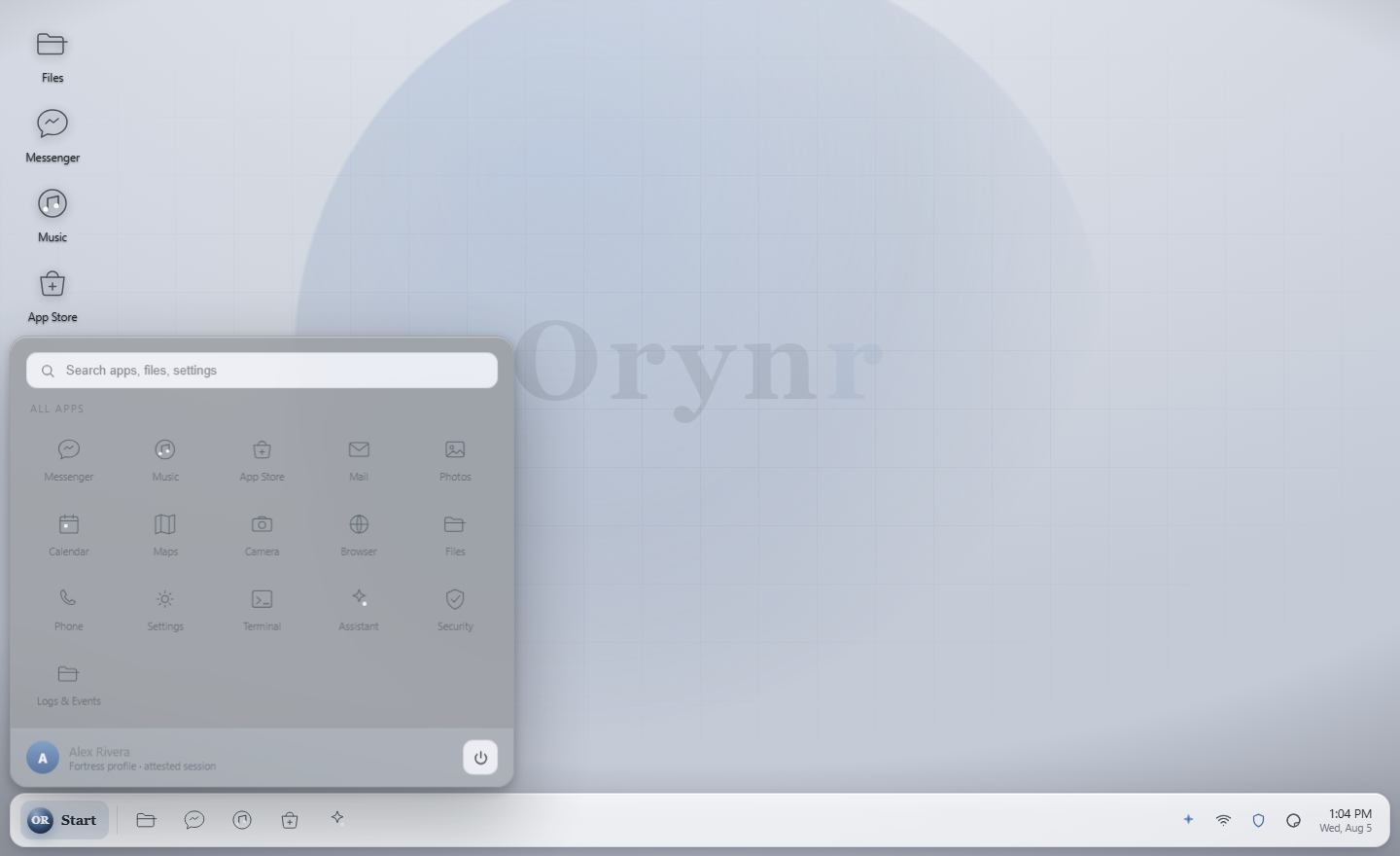
Start menu
Search plus every installed app, with your profile and the power button at the bottom.
The 60-second tour
| Do this | To… |
|---|---|
| Start → Assistant | Ask Ora anything, or have her do real work (she asks you first) |
| Files (desktop) | Browse, organise and safely open your files |
| Start → Security Center | Run a scan, check the firewall, see every connection |
| Start → Settings | Themes, display, accounts, AI & models |
| Right-click the desktop | Personalize, display settings, new file or folder |
| Ctrl+Alt+Del | Lock the screen, open the Task Manager, or switch the computer off |
| Start → power | Shut down or restart |
Putting Orynr on a USB stick
Writing the stick, the firmware settings, and what to do when it will not boot now have a page of their own, with more room than this one had.
Files
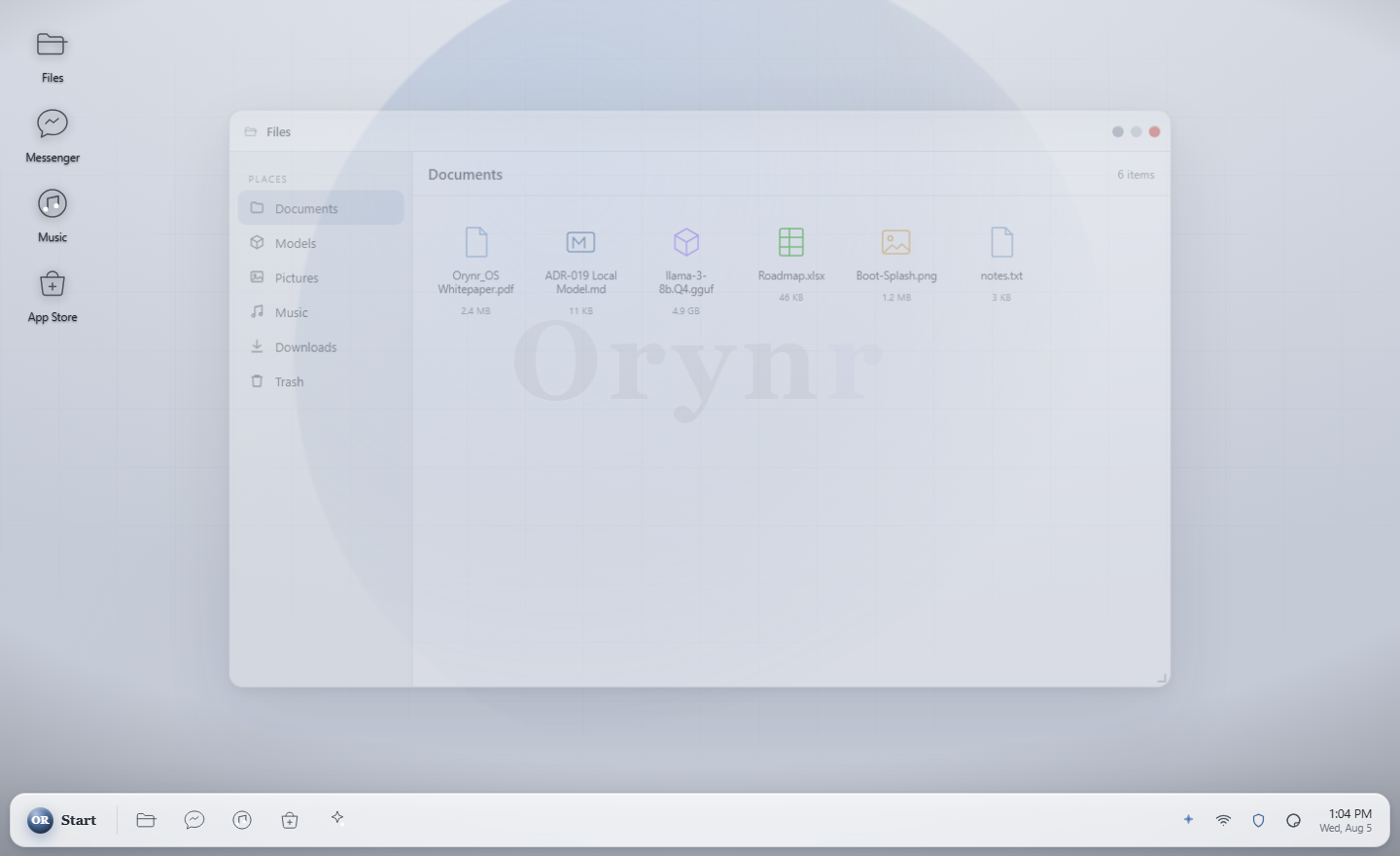
Your file manager. It opens in your home, which has the folders you'd expect — Documents, Downloads, Pictures, Videos, Music, Desktop and Public, on the writable part of the disk, so you can genuinely save into them.
Everyday use
- Navigate. Double-click folders;
↑up,⌂home,↻refresh. - Create. Right-click empty space → New folder / New file.
- Organize. Right-click an item for Copy, Cut, Paste, Rename, Delete.
- Trash, Delete moves items to the Trash (recover them from the desktop Trash icon). Deleting inside the Trash is permanent, and Orynr tells you which one you're about to do.
Unique to Orynr: files can't lie
Most desktops decide what a file is from its name, a decades-old attack. Orynr
identifies every file by its actual contents. A file whose name disagrees
with its bytes, invoice.pdf that's really a program, is flagged, and Orynr
refuses to open it with the handler its name claims.
Assistant (Ora)
Your on-device AI operator. Ora answers questions and takes real actions on the system, but every privileged action raises a consent card you approve or deny, and everything is audited.
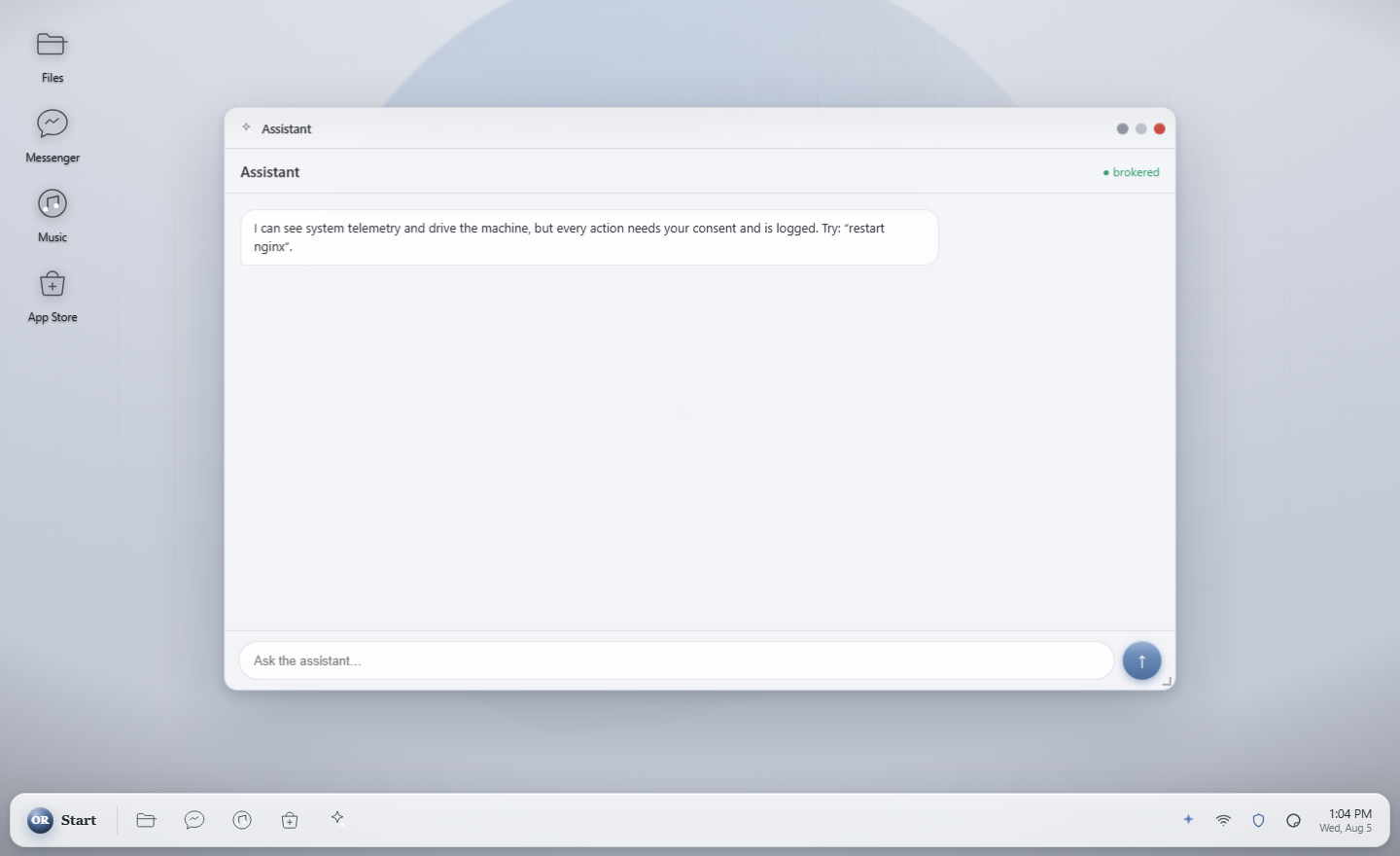
First run, point Ora at a model
- Open the Assistant and click the gear → Models & providers.
- Under Local / custom server, enter your model server as
host:portor a full URL, for example192.168.1.5:4097. - Click Connect. Orynr auto-detects OpenAI-compatible servers (llama.cpp, vLLM, LM Studio, Ollama) and native Orynr engines.
Using Ora day to day
- Ask or instruct. Type a question or a goal, press Send.
- Stop. While it's working, Send becomes Stop; click to halt a long answer.
- Reasoning. Thinking models stream their reasoning into a collapsible panel, the answer into the bubble.
- Consent cards. When Ora wants to run a command or touch files you get Approve / Deny.
- Access scope, Container (safe default), Home & files, Whole OS, or a custom folder.
Security
Your defence centre, one window, several layers.
Antivirus Shipping
System scan, Drive scan, or Talk to Ora to investigate anything suspicious.
Network firewall Shipping
The packet firewall plus the Threat Centre for live connections and blocks.
Kernel firewall New
Watches the kernel itself: sees every program that runs and can block execution from the temp folders malware hides in.
App Store
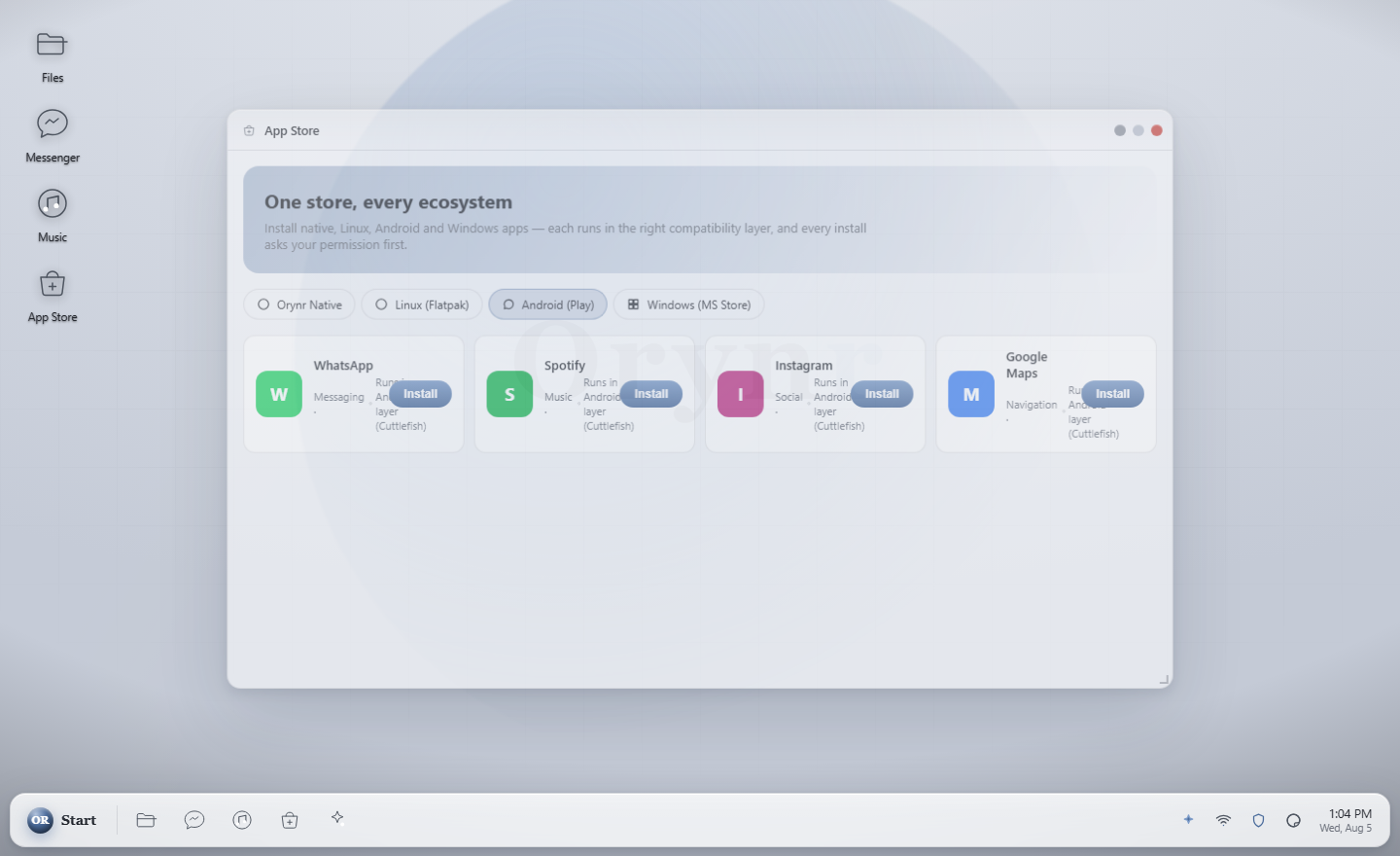
Extend what Ora can do. The App Store installs capability packs. Filesystem access, databases, web tools and more. Each new capability is still gated by the consent broker, so a bigger toolbox never means less control.
Browser
An AI-first browser. It fetches a page, reduces it to readable text, and lets Ora summarize it, answer questions about it, or pull out exactly what you need, with multi-pane reading for wide screens.
Open it from the desktop Browser icon or Start → Browser.
Settings & themes
Appearance
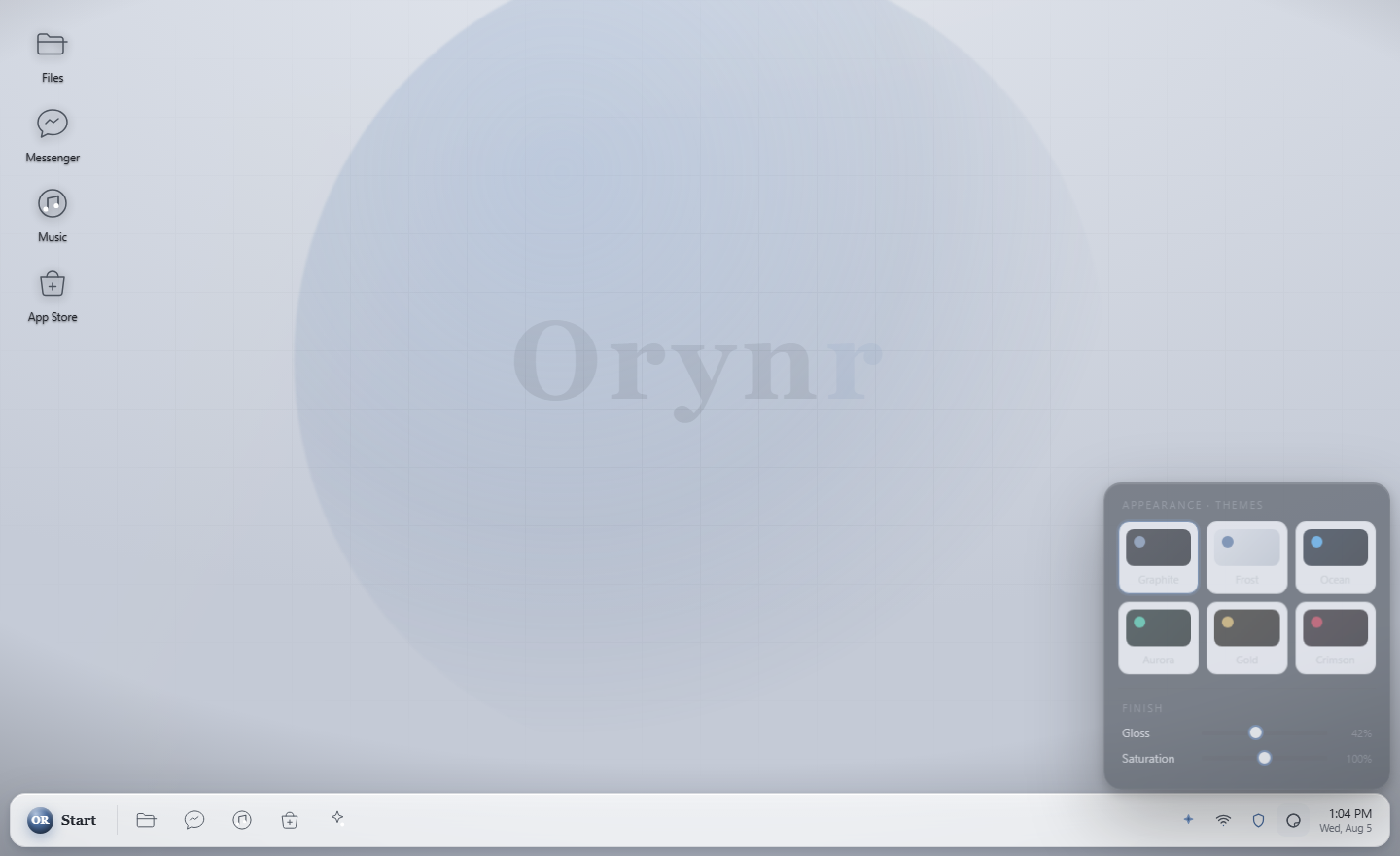
Seven themes (default Frost, a clean light look), plus gloss, saturation and wallpaper. Shortcut: right-click desktop → Personalize.
Display
Resolution, refresh rate and scale. Multi-monitor with Single / Extend / Mirror, per-display wallpaper and icon sizes.
Power
Start → power opens a small menu with Shut Down and Restart. There's a confirmation step, so a stray click never powers you off.
How Orynr protects you
You don't have to do anything for most of this, it's how the system is built.
The system can't be tampered with
The system disk is read-only and cryptographically verified. Alter it and it won't boot.
A hardened kernel we build ourselves
Mainline Linux LTS plus the hardened patch set and our own configuration, with layered defences against kernel exploitation.
Malware can't run from where malware lives
The kernel firewall can block programs launching from the world-writable temp folders attackers stage payloads in.
Post-quantum signed updates
Updates and governance artifacts are signed with ML-DSA (FIPS 204), so they stay verifiable against future quantum attack. Post-quantum key exchange is on the roadmap.
An AI that can't act behind your back
Every privileged action Ora takes needs your approval and is written to an audit trail.
Files judged by content
A file that lies about its type is flagged and never handed to the wrong handler.
Privacy & your data
- Local-first. Ora runs against a model on your own machine. No prompt or file leaves Orynr unless you explicitly point it at a remote server.
- No content telemetry. Anything Orynr learns from the fleet is OS and hardware problem data only. Never your content.
- You own the machine. Owner control is credential-bound and audited. It is your authenticated control, not a hidden backdoor.
When Ora asks permission
A card appears before anything on your machine changes. Here's how to read it, and how to decide.
Ora cannot change your system on her own. She asks a separate part of the OS called the consent broker, which decides whether the change is allowed, asks you when your say-so is needed, and writes down what happened either way. The card you see is that conversation surfacing.
The four parts of the card
- What will happen, in a box. These are the system's exact words, never Ora's. If she has been misled into requesting something, she cannot dress it up here.
- Why it matters. The general risk of that kind of change.
- Ora's own read, marked with her name. This is her explaining the specific case: which service it is, whether anything depends on it. Useful, and the part to weigh rather than take on faith.
- Where the setting lives, and this page.
Not now is always safe. Nothing happens, nothing breaks, and you can ask again later. If you don't understand a card, that is the right answer, and it is deliberately the wider button.
How often you get asked
Settings → Assistant → Consent has three levels:
- Review everything. A card for every change. Slower, and the right place to start.
- Review important only. Ordinary edits go through; anything that touches services, the firewall or your ability to get back in still asks.
- No prompts. Ora acts without asking. The rules still apply. The never-allowed list is not a consent question, and everything is still recorded. This turns off the asking, not the limits.
Things that are refused no matter what you click
Some changes aren't offered at all, because agreeing to "change a file" is not agreeing to overwrite the bootloader. Ora can never write to your bootloader, your password file, sudo or PAM configuration, SELinux policy, the owner record, or her own audit log. She cannot install a startup service, a cron job or a shell profile, because those are ways of running code as root wearing the costume of a file edit. She cannot stop the services that keep the machine defended or reachable, and she cannot switch off the broker that supervises her.
If a card ever seems to be asking for one of those, something is wrong. Choose Not now and tell us.
Services and startup items
Background programs the system runs for you, and what happens when you turn one off.
A service is a program running quietly in the background: printing, networking, the display, the thing that lets you log in. A startup item is a service set to begin automatically when the machine boots. The Dashboard lists both.
Disable is not the same as stop
- Disable means don't start next time. Whatever is running now keeps running until you reboot.
- Stop ends it immediately.
The Dashboard's Disable button does only the first, on purpose. Turning something off for the future and killing it mid-work are two different decisions, and pressing one button shouldn't make both.
Before you turn one off
Ask what depends on it. Printing can go; the machine simply won't print. Networking, the display manager, or remote access are different: stopping one of those can end your session or leave you unable to reach the machine at all. If you are working over SSH, be especially careful, because the thing you would use to undo the mistake is the thing you just stopped.
This is why service changes always ask, even at Review important only. Ora's note on the card usually tells you what the specific service does.
Some services can't be disabled
Orynr refuses to let the assistant stop or disable the services that keep the machine defended or reachable: remote access, the login system, auditing, the firewall, the kernel guard, and the consent broker itself. Restarting them is allowed, since that is sometimes the actual fix. Disabling is not, because a defence that doesn't come back after a reboot has been removed rather than adjusted.
You can still change these yourself as the owner. The restriction is on the assistant, not on you.
Undoing it
Enable it again from the same list, or ask Ora. Nothing is deleted by disabling a service.
Firewall changes
What can reach your machine, and what your machine can reach.
Orynr starts closed. Nothing from the network gets in unless a rule allows it, and that is the default rather than something you configure. Every firewall change therefore either opens something that was shut, or shuts something you may be relying on.
Allowing traffic
An allow rule opens a way in. That is sometimes exactly right: file sharing on your own network, a game, a development server. It is worth being deliberate about the scope. A rule allowing your home network is a much smaller promise than one allowing anywhere.
Blocking traffic
A block rule can cut off something you are using. If you are connected from another machine, a badly aimed block can end that connection and lock you out. Read the port and address on the card before allowing it.
Why rules are structured, not typed
Ora cannot hand the firewall a line of configuration text. She can only describe a rule in pieces: direction, port, address, allow or block. The system builds the actual rule from those pieces after checking each one. It is a narrower way to work, and it means a rule cannot smuggle in something the card didn't describe.
For the same reason, the firewall's configuration file is off-limits to her file editing. Otherwise the careful path would sit next to an unguarded one.
Seeing what's in place
Open the Firewall app, or ask Ora to explain what is currently exposed. Reading the rules never needs permission.
System configuration files
When Ora edits settings, and what she is not allowed to touch.
Some fixes mean editing a configuration file: a hostname, a mount point, a logging setting. Ora can do that, and every such change asks first.
The previous version is always kept
Before writing, the system copies the current file alongside it as a hidden backup in the same folder. If a change turns out wrong, the original is right there. The copy is made before the write, so an interruption leaves either the untouched original or the original plus a backup, never a half-written file with nothing to fall back on.
What she can never edit
Whole areas are closed regardless of what you approve, because they are the difference between a mistake and an unbootable or undefended machine:
- Boot files. A bad write means the machine doesn't start.
- Passwords, sudo, PAM. Authentication itself.
- SELinux policy. The thing enforcing everything else.
- The owner record. Nobody appoints themselves owner by editing a file.
- The audit log. An assistant that can rewrite its own history isn't audited.
- Startup services, cron jobs, shell profiles, library preloads. All of these run code as root. They arrive looking like an ordinary file edit, which is exactly why they're listed.
The list is kept deliberately short. A system where nothing can be edited is a system people work around, and that is worse than the risk it was avoiding.
Diagnostics
Ora looking at your machine to work out what's wrong.
Checks like free disk space, failed services, what is listening on the network, and whether system files have been altered. These never ask permission, because they only read. Nothing about your machine changes.
That is a deliberate choice rather than an oversight. An assistant that asks before it is allowed to look at anything becomes an assistant nobody leaves switched on, and constant prompting teaches people to click through the ones that matter. Permission is spent where something actually changes.
Diagnostics are still recorded in the audit log, so you can always see what Ora looked at and when.
Reading the results
Ask Ora to explain any of it in plain terms. "What's using my disk?" and "is anything exposed to the internet?" both work, and she will run the check and interpret it rather than handing you a table.
Troubleshooting
Fixes for the things people actually hit. Still stuck? Ask Ora to diagnose it.
The Assistant says “cannot reach agent engine”
Ora needs a model server, and the address matters:
- In a virtual machine,
127.0.0.1means the VM itself, not your host. If the model runs on your host or another machine, use that address: Assistant → gear → Local / custom server →192.168.1.5:4097→ Connect. - Local models need no API key. Leave those fields blank.
- The model server must accept remote connections. Start it listening on
0.0.0.0and allow its port through the host firewall. - Enter just
host:port. If you paste a full URL like…/v1/models, Orynr trims it for you.
The first answer is very slow, then it speeds up
Large local models cold-load on the first request. The first reply can take around 30 seconds while the model loads into memory. After that it's fast. That's the model server warming up, not Orynr hanging.
Ora “thinks” for a while and shows no answer
Reasoning models stream their thinking first, into the collapsible reasoning panel, and the answer second. Give it a moment, or press Stop if you've seen enough.
Files opens on system folders instead of my home
Fixed in current builds, so Files opens in your home. If you still land in system folders, rebuild the image, then use the ⌂ Home button.
Recovering or emptying the Trash
Deleting moves items to the Trash (desktop icon). Open it to drag things back out, or delete them from inside the Trash to remove them for good. The confirmation always tells you which action you're taking.
Boot is slow
A hardened kernel option was zeroing all of RAM at every boot. It's fixed, rebuild the image and boot time drops sharply. In VMware, also switch on “Accelerate 3D graphics” for a snappier desktop.
Black screen after the boot text
An older build could stop at a black screen (a device-brokering service didn't start). Current builds fix this, rebuild the image.
A CD, DVD or USB stick doesn't appear
Optical media auto-mounts read-only at /run/media/orynr/cdrom, so you can browse it in Files. Host↔guest shared folders are an optional add-on that widens the attack surface, so they're off by default.
The kernel firewall isn't blocking anything
By design, it ships in observe mode: it watches every program launch and logs it, but blocks nothing. Enforcement is a switch in its service. Start in observe, see what would be blocked, then enforce. It also needs the current hardened kernel; on an older one it exits cleanly.
Still stuck?
- Ask Ora: “diagnose why X isn't working.” It can inspect the system with your consent.
- Check Start → Security → Threat Centre for anything the firewall flagged.
- When diagnostics are configured, the OS reports boot health to your admin's server.
Frequently asked questions
What is Ora?
Your on-device AI operator. It answers questions and takes real actions on the system. The part that makes it safe: every privileged action raises a consent card you approve or deny, and it's all audited.
Is my data private?
Yes. Orynr is local-first: Ora runs against a model on your own machine, and nothing leaves the box unless you point it somewhere. Fleet-improvement data covers OS and hardware problems only, never your content.
Local AI or cloud AI?
Local by default. Point Ora at any OpenAI-compatible server you run (llama.cpp, vLLM, LM Studio, Ollama) or a native Orynr engine. Local models need no API key.
Is Orynr just Linux?
Underneath it's Linux, a kernel we build ourselves from mainline LTS plus the hardened patch set and our own configuration. On top sits our own desktop, apps and the Ora operator plane.
Can I run Windows apps?
That is being built now, and it is not in this build yet. Here is what it will be, so you can judge whether it fits.
Windows applications run through a compatibility layer that translates Windows API calls into Linux ones. There is no Windows virtual machine, no Microsoft code, and no Windows licence to buy. Each app runs in its own sandbox with the file and network access you grant it, so a Windows program gets no more of your machine than any other app.
It will not run everything. Applications with kernel-level anti-cheat or their own device drivers are the usual exceptions, and we would rather say so than let you find out after switching.
Can Orynr join our Windows domain?
Also being built now. Orynr will join an Active Directory domain using the standard Linux path: Kerberos for authentication, SSSD for identity, and SMB for file shares. Users sign in with their domain account, home directories follow them, and shares mount as expected.
It is off by default and opt-in, offered in the installer and in the enterprise profile only. Joining a domain means trusting a domain controller and running extra network-facing authentication services, which is a real increase in attack surface. That is a reasonable trade for a managed company laptop and the wrong default for a personal machine, so we make you choose it rather than choosing for you.
The hardened Fortress profile does not offer it at all.
Why are some apps (Mail, Photos, Music…) missing?
Orynr only shows icons for apps that actually open, so there are no dead buttons. Those apps are planned and will appear as they ship.
How do I change the look?
Seven themes, default Frost. Right-click the desktop → Personalize / Themes, or Start → Settings → Appearance.
How do I shut down or restart?
Start → power → Shut Down or Restart, with a confirmation.
How do I update Orynr?
Updates rebuild the verified image. Because the base is immutable, updates are all-or-nothing and tamper-evident, never a half-patched state.
Who controls this machine?
You do. Owner sovereignty is credential-bound and audited. It is your authenticated control, not a hidden backdoor.
No help topics match that search. Try a different word, or ask Ora.